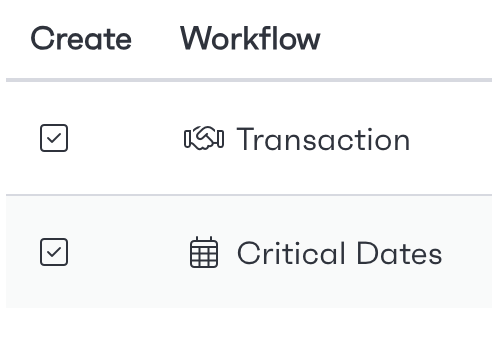
Programme templates can be used to package together multiple workflows into one process. The Programme will keep track of all associated workflows, including stages, statuses and recent activity. Users can plan projects using the Programme Gantt chart.
You are required to have a template programme set up before you can create a separate programme.
To get started with creating a new programme template, navigate to the ‘Templates‘ page and click the 'New Programme Template' button, located at the top right of the page.
You will be able to configure different aspects of the template, each outlined below.

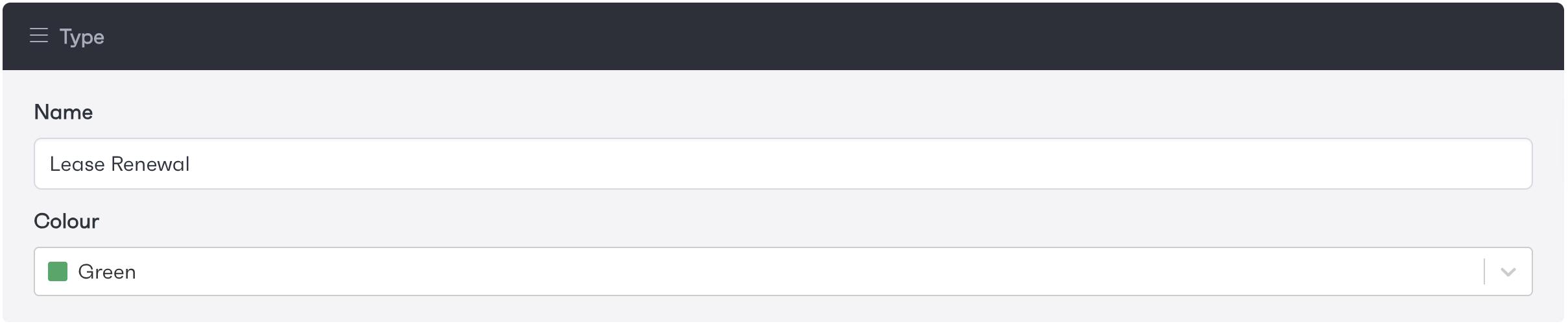
To create a new type, navigate to the new type page using the navigation bar. Once on this page, you will be able to start the creation of a type. These will be used on workflows and programmes to show information to be seen quickly, where required. You will be required to enter the name and colour associated with the type before creating one.
To create a new status, navigate to the new status page with the use of the navigation bar, once on this page, you will be able to create a new status. These will be displayed on workflows and programmes as tags, these status tags can be anything from 'Additional Information Required' to 'Success' or 'Failed'.
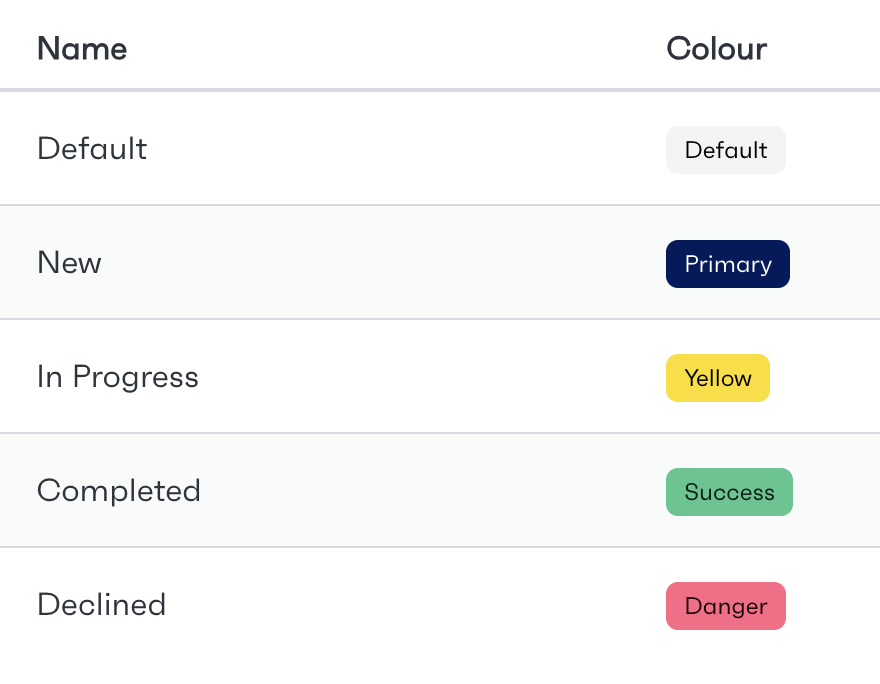
A standard set of statuses are pre-loaded when creating a programme. When creating a new status, you will be required to enter the name and colour associated with this status.
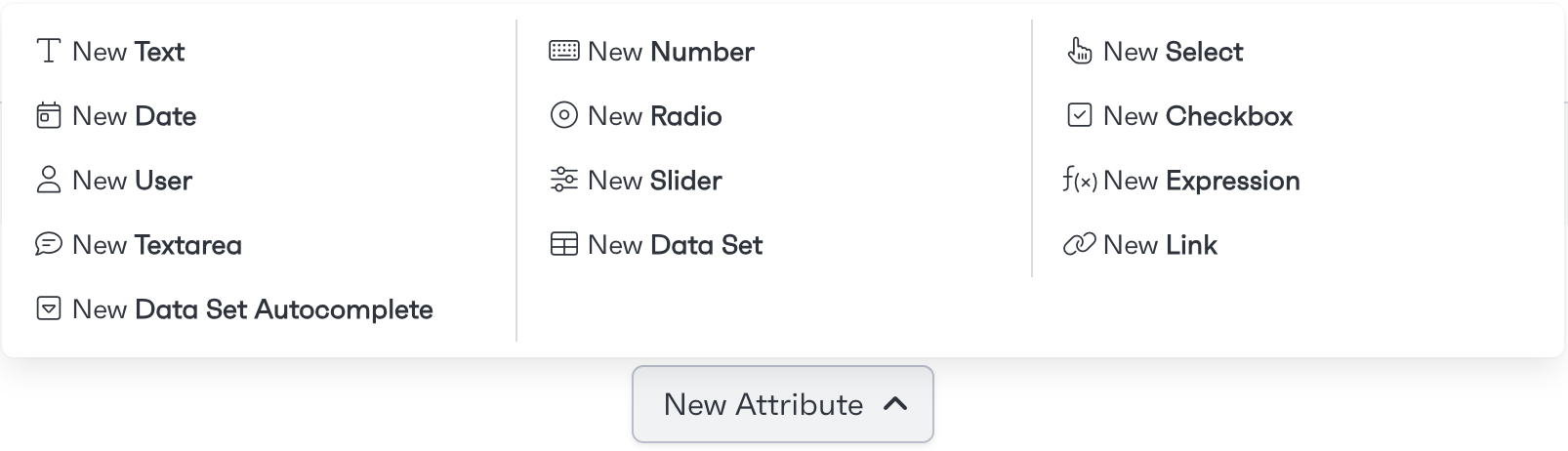
To create a new attribute, navigate to the New Attribute page with the navigation bar, once you are on the New Attribute page, select the attribute type you are looking to create with the menu. These attributes are utilised for a number of different use cases and data types which will be displayed in a programme.
Using the 'Create Template Workflow' section will allow you to create a new workflow, this will allow you to ensure that whenever the template is used, a related workflow will be created. allowing for the quick and easy setup of additional workflows.