Role Permissions
User roles are what define the user’s ability to interact with different functions across the application that they are using. These roles will allow the user to perform different actions, from viewing sites if they are a user, to editing what those sites display if they are an administrator of the site.
To configure this, first navigate to ‘Roles’ select ‘Edit’ for the role you would like to amend. This page will display all of the elements that can be accessed on REflow. You will be able to toggle role permissions including, viewing items, editing items, creating items and deleting items.
Assigning System Roles to Workflow Roles
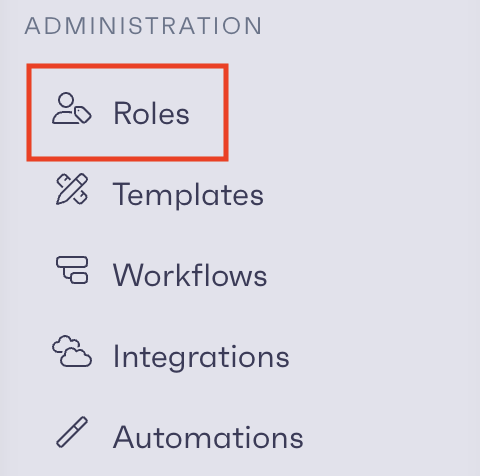
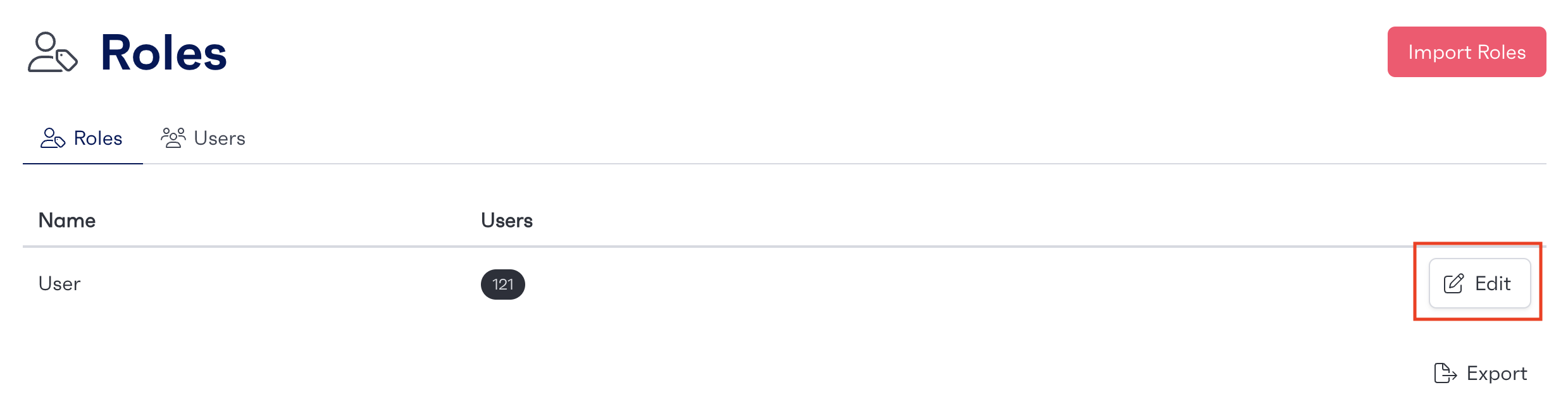
Once workflow roles have been set up, the system will need to be configured to specify what system roles will appear within the dropdown when editing the workflow settings. To configure this, navigate to the ‘Roles‘ page from the ‘Administration’ menu. Select the edit button on the role you would like to assign to a specific workflow role.
Once you have selected the system role you would like to configure, all available workflows appear as tabs along the top of the page. Click on the workflow you would like to assign the system role to.

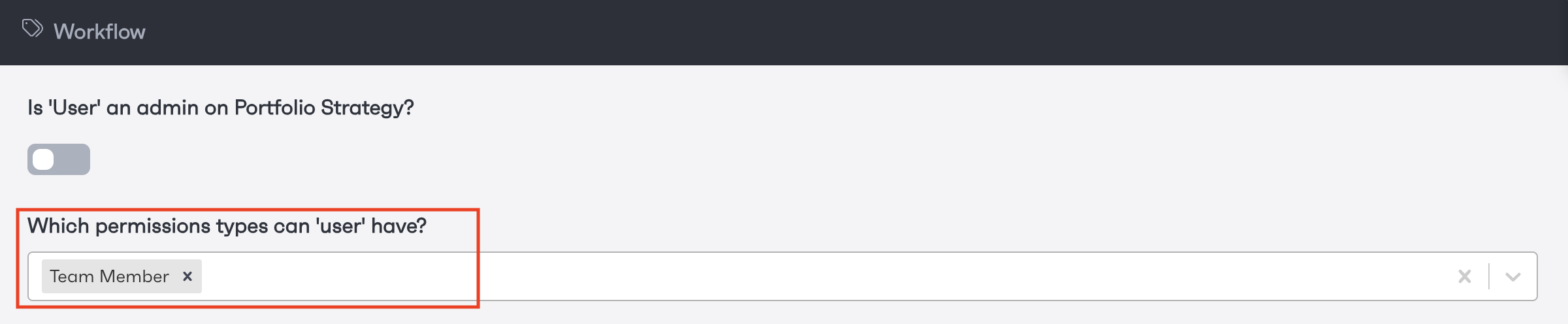
In the “Which permissions types can ‘role’ have?” field you can select the workflow roles from the workflow you are editing, this will allow that role to be assigned to the workflow roles selected. Once you’re happy click ‘Update Role’.
In this example, Users are able to be set to the Team Members role on the Portfolio Strategy Workflow.