
Folders
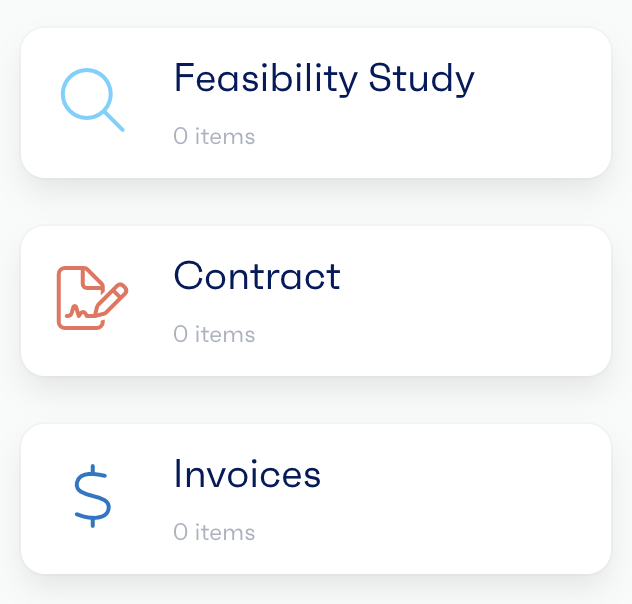
Folders are used within workflows to manage the files or resources uploaded to specific projects. This allows users to categorise their uploads into predefined folders for easy access. Admins can create new or manage existing folder structures of a given workflow, allowing for customisability of the system.
Managing Workflow Folders
To manage the existing folder structure, you will need to navigate to ‘Workflows’ under the administration section of the left-hand menu. From here, select the workflow you would like to update by clicking on the ‘View’ button. Select the ‘Folders’ tab from the menu along the top. This page displays a list of existing folders configured for the selected workflow.
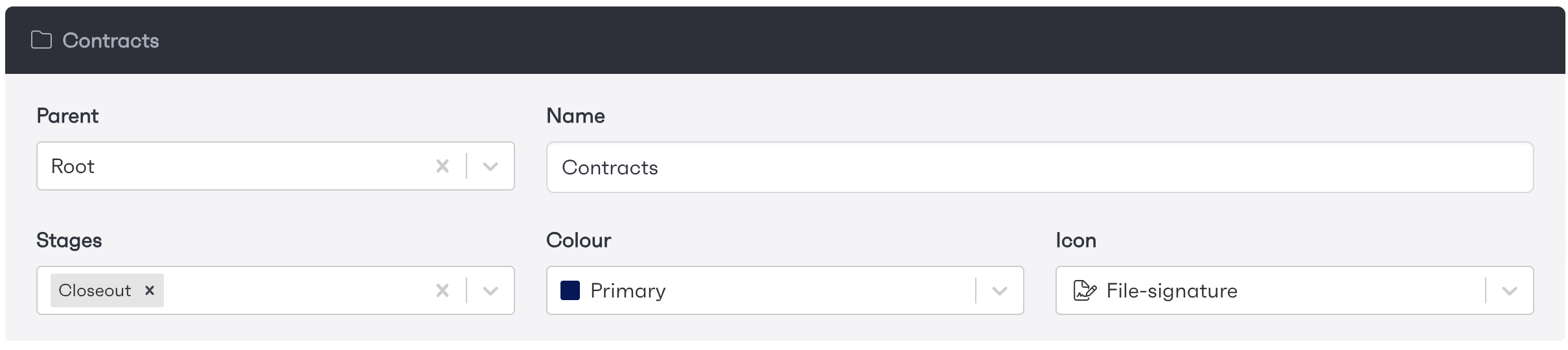
If you would like to amend any of the existing folders, clicking on the ‘Edit’ button to the right of the folder allows you to update specific settings. This includes the folder name, colour and icon, alongside the parent folder and the stages the folder is available. Permissions can be configured so only specified roles can access certain folders.

Creating New Folders
To create a new folder, navigate to ‘Workflows’ under the administration section of the left-hand menu. From here, select the workflow you would like to update by clicking on the ‘View’ button. Select the ‘Folders’ tab from the menu along the top. On this page click the ‘New Folder‘ button at the bottom of the page.
You will be required to enter the folder name, colour and icon, alongside the parent folder and the stages the folder is available. Permissions can be configured so only specified roles can access certain folders. Once everything has been set up, click the ‘Create Workflow Folder’ button to save your new folder.