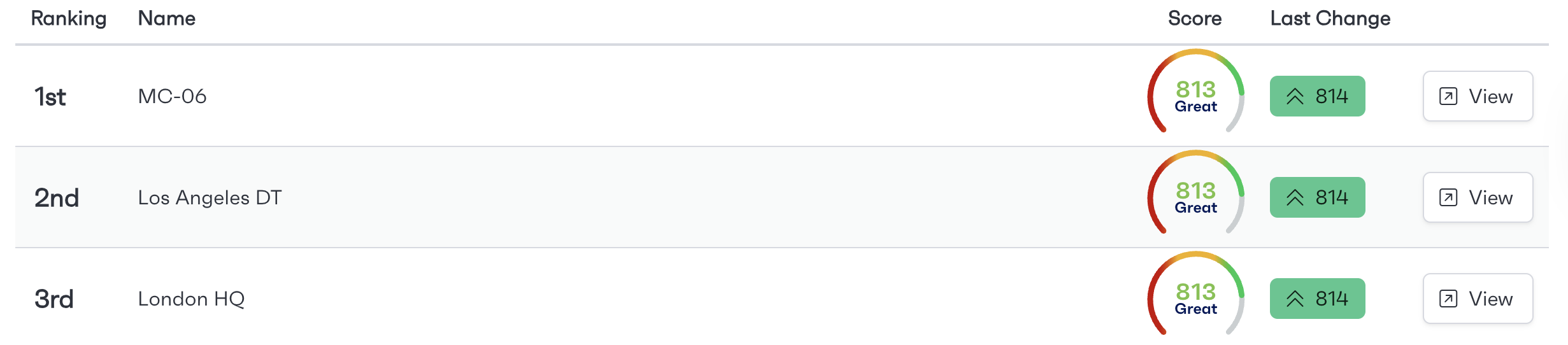
Scoreboard
The Scoreboard shows users the current position of their sites, with the most recent change in score. Sites will move up and down the list based on their current scoring. You can gain an overview of top-performing sites or review why other sites are lower on the scoreboard.
To access the scoreboard, navigate to “Scorecards“ from the menu on the left. Individual scores can be reviewed using the “View“ button at the right of each location.
Scorecard
Each site will have its own Scorecard, displaying various metrics broken down into categories alongside any critical updates recommended by the system.
Scorecard History
Scorecards also have a history available to be displayed where required, this history & recent actions section provides users with a detailed in-depth overview of the changes made to a site, including information such as; User who made the change, impact it had on the score, score timeline, To view the full history of a scorecard, click the “View Full History Button”.
Critical Updates
Critical updates is located on the right side of the scorecard. The purpose of the critical updates section is to provide users with an immediate overview surrounding whats good and whats bad in relation to the site they are viewing.
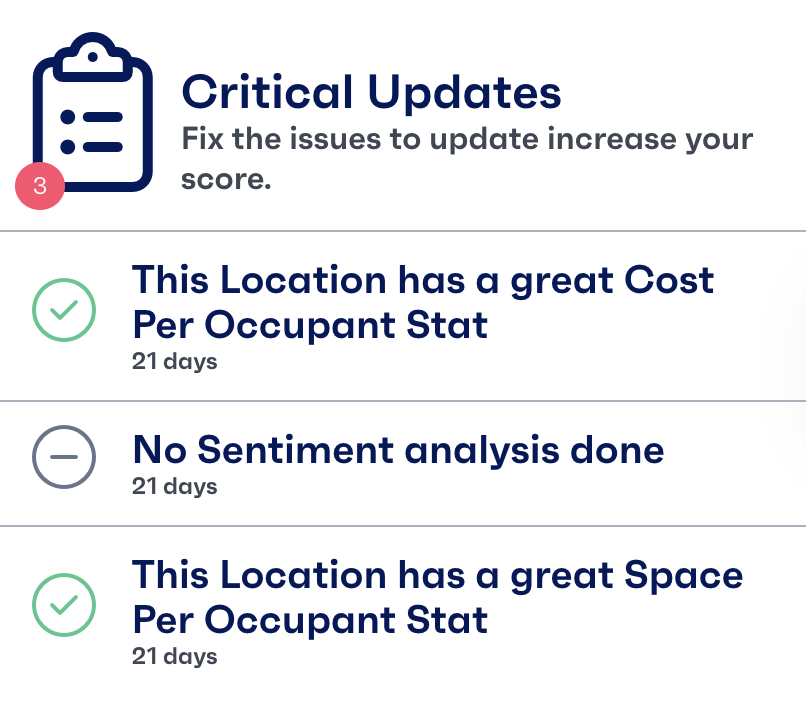
From here, users can immediately see what needs changing, or fixing in order to increase their score. The critical updates section also contains information about metrics that are performing well on the site.
Critical updates notifications also come with a date and time that they were posted or issued to the scorecard to allow easy tracking of timelines, without the user of the full history feature.
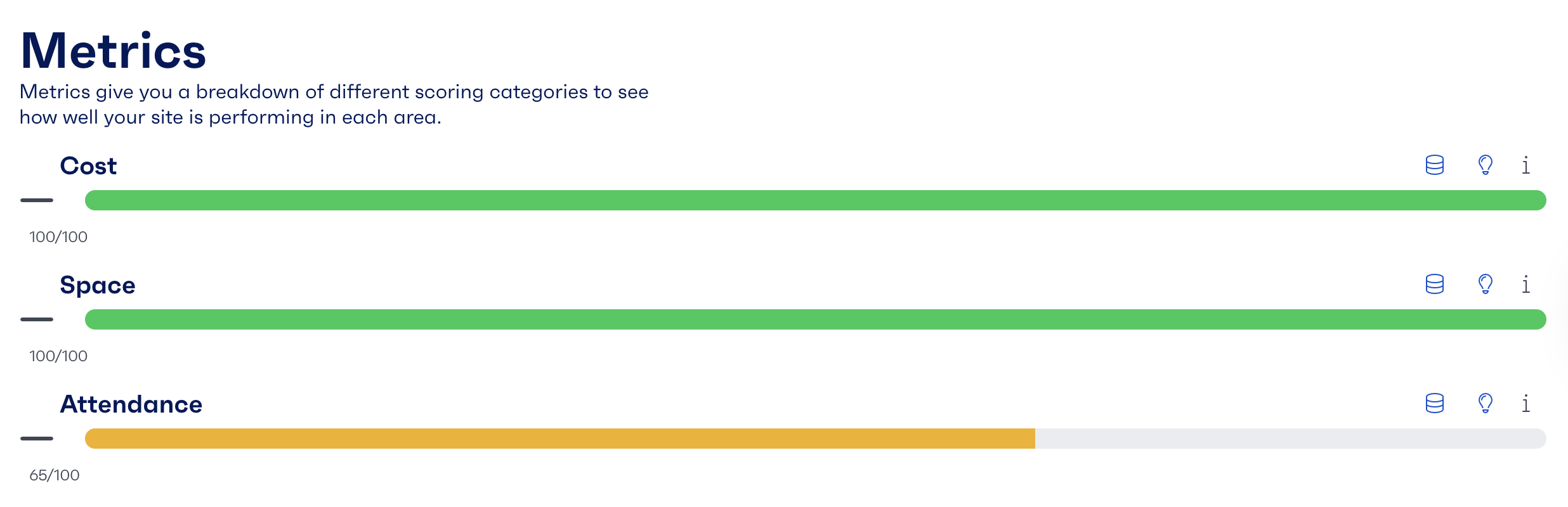
Metrics
Metrics give you a breakdown of different scoring categories to see how well your site is performing in each area. These categories can be configured to group data points on what matters to you.